
How to install an AI chatbot on Shopify
Shopify setup is designed to be quick: install the app, approve permissions, customize the widget, and test the customer experience.
Setup checklist
- Aube AI app is installed
- Product and policy sync completed
- Widget color and welcome message are set
- Knowledge base covers common support questions
- Needs Attention conversations are reviewed
Install Aube AI from Shopify
Start from the Aube AI install button and approve the requested store permissions. These permissions allow product, order, and policy support inside customer conversations.
Let the first sync complete
After installation, Aube AI syncs products, basic store settings, and available policies. Most stores finish the first sync in a few minutes.
Customize the chat widget
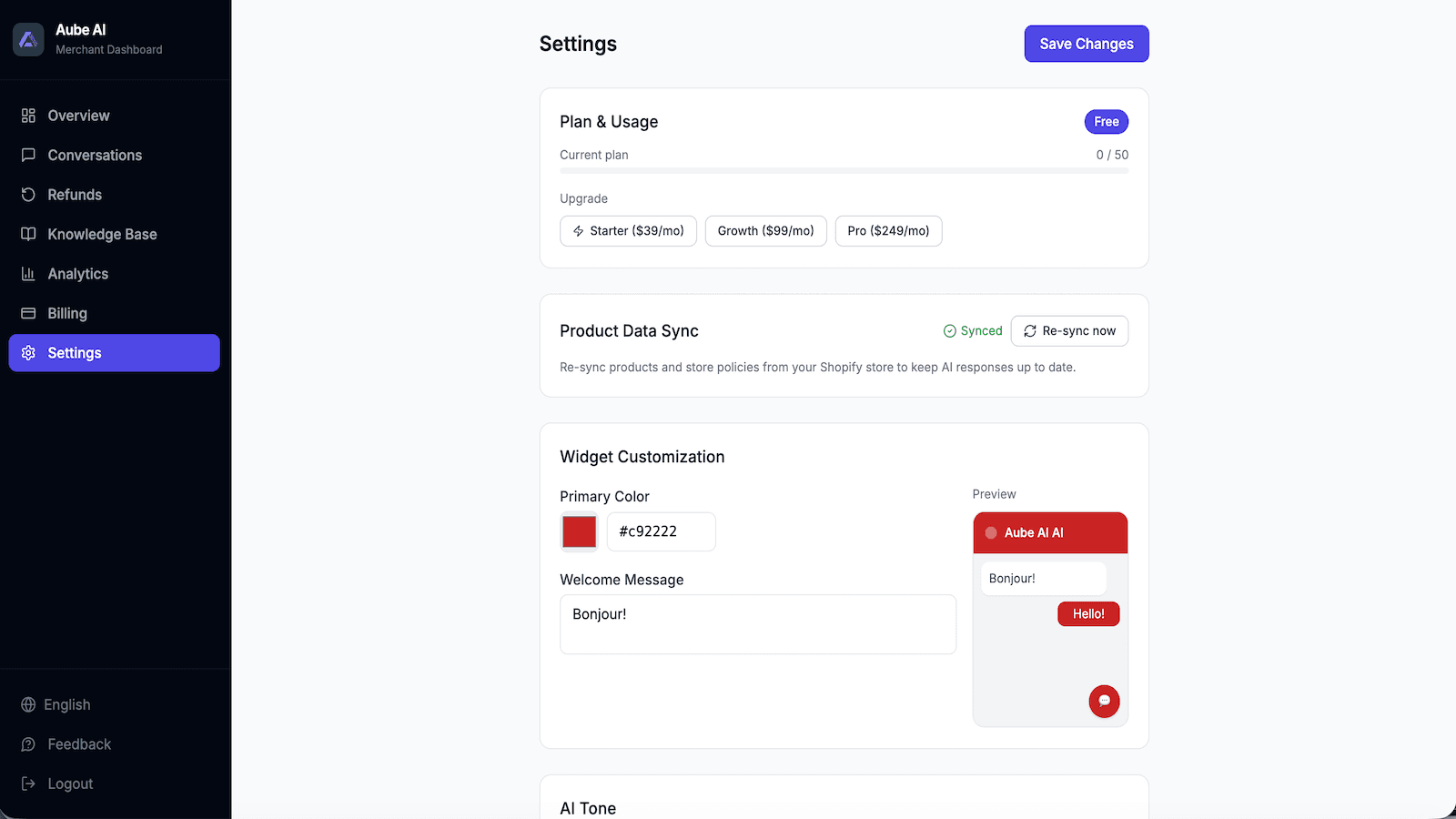
Open Settings in the dashboard to set the primary color, welcome message, and AI tone. Keep the message short and specific to customer support.
Add missing support knowledge
If customers ask about care instructions, sizing, wholesale, warranty, or other details not stored in Shopify, add those answers to the knowledge base.
Review early conversations
For the first week, review conversations that need attention. Add recurring unanswered topics to the knowledge base to improve the resolution rate.
Ready to publish the chatbot?
Create your Aube AI account, connect your store, and test your first customer conversation from the dashboard.
Install free on Shopify